Keep everyday spending current
Capture purchases close to checkout instead of reconstructing a week of coffee, transit, and grocery spending.
Budgeteer is an Apple Pay expense tracker for iPhone that uses a Shortcuts Wallet automation to capture purchases from selected cards. It brings the amount and merchant into Budgeteer, categorizes the transaction, and connects spending to your monthly budget.
The Apple Pay workflow requires setup on iPhone. Check current subscription options in the app.
A coffee, a grocery run, and a few small purchases can disappear from memory before you review your spending. Looking at card activity later tells you what happened, but you still need to connect those purchases to the budget categories they affect.
Budgeteer connects Apple Pay expense capture with category budgets, tracked accounts, and spending reviews. After setup, eligible Wallet transactions can be recorded without opening the app. Review the category and payment account so your budget reflects what you actually bought.
Learn how to track Apple Pay expenses accurately →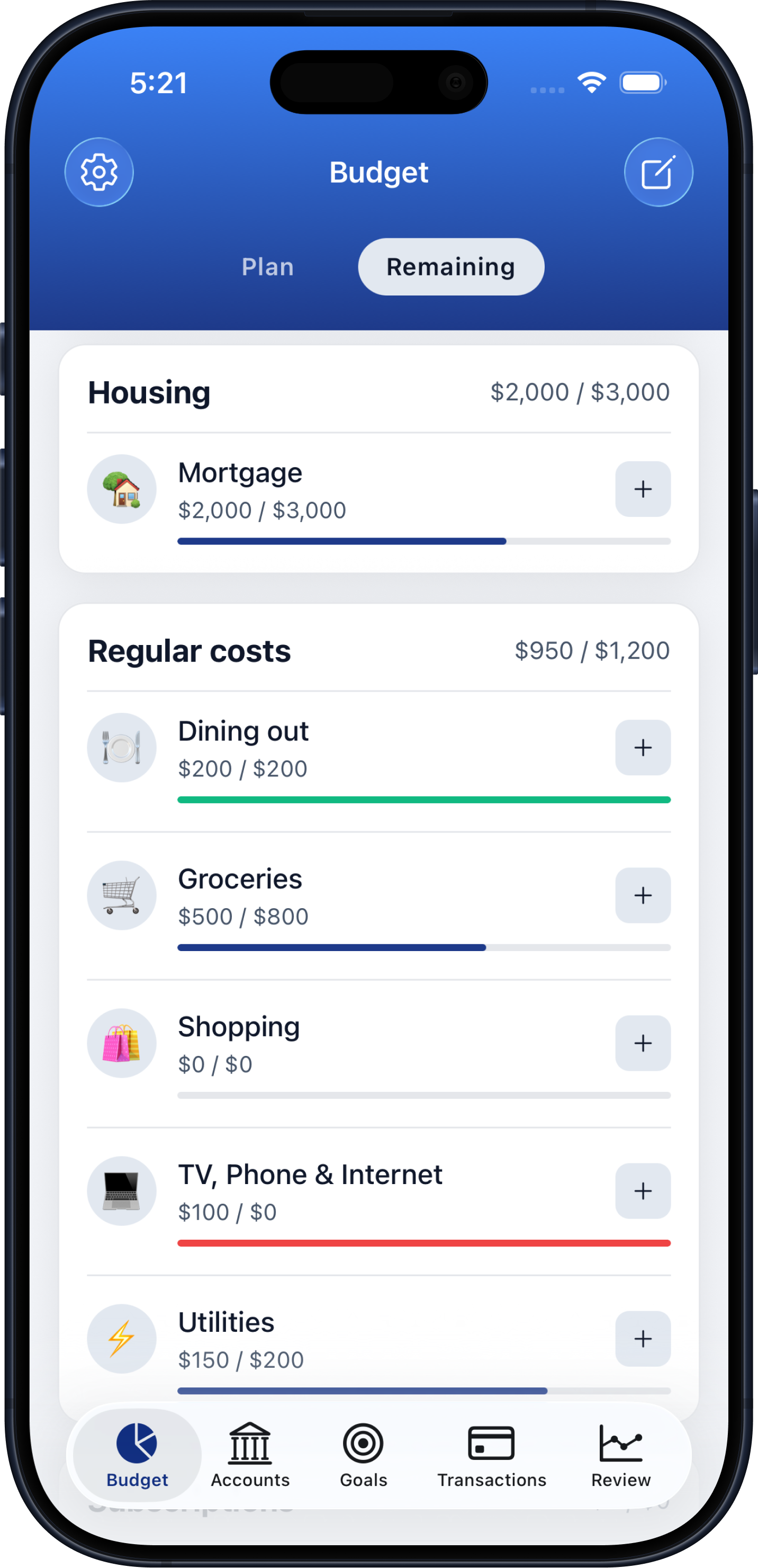
Apple Pay purchase → Budgeteer tracking → categorized transaction → updated budget
Create your spending categories and monthly budget. Open Shortcuts & Automations in Budgeteer to enable shortcut access.
In Apple’s Shortcuts app, create a Wallet automation for the cards you want to track. Choose Run Immediately, add Budgeteer’s Add Transaction action, and map the Wallet Amount and Merchant inputs. Turn off Show When Run and save.
Use Apple Pay with a selected card. Budgeteer records the transaction and attempts to match a category. Check the amount, category, account, and updated budget, especially for unfamiliar merchants.
Capture purchases close to checkout instead of reconstructing a week of coffee, transit, and grocery spending.
Connect the recorded purchase to a category budget so the next spending decision uses current information.
Use voice, receipt scanning, or manual entry for cash and purchases outside the Wallet automation.
This is an automation you configure in Shortcuts; installing Budgeteer alone does not start tracking Apple Pay purchases. It passes the Wallet transaction amount and merchant to Budgeteer for selected cards. This workflow is not a historical bank import or a complete feed of every card purchase.
After setup, verify your first purchase. Category matching may need correction, and the selected payment account should match how you paid. Check final posted amounts when tips or authorizations change, and avoid entering a receipt as a second expense if the same purchase was already captured.
Yes, after you enable shortcut access in Budgeteer and configure a Wallet automation in Apple’s Shortcuts app. The automation captures purchases for the selected cards; review the resulting transactions for accuracy.
Apple Wallet supplies transaction information to the automation. Budgeteer adds the budgeting context: categories, monthly spending plans, tracked accounts, and reviews.
The described Wallet automation captures purchases after setup. It is not a historical bank import, and purchases outside that automation need another entry method.
This workflow requires Apple Pay and Apple’s Shortcuts app on iPhone. Budgeteer is also available on Android, where you can use other expense entry methods.
Check your card activity, add a missing expense manually, and correct the category or account in Budgeteer. Reconcile regularly to catch duplicates and adjusted amounts.
Download Budgeteer on iPhone, set up your Wallet automation, and review your first tracked purchase.